> ## Documentation Index
> Fetch the complete documentation index at: https://extension.js.org/llms.txt
> Use this file to discover all available pages before exploring further.
# Get started with Extension.js samples
> Run any GitHub browser extension in 30 seconds with Extension.js. Pass a GitHub URL to extension dev and skip cloning, installing, and configuring.
## Run any GitHub extension in 30 seconds
The sections below cover both paths. You will learn what Extension.js treats as a project root and how it resolves ambiguous inputs like a bare sample name.
## How `dev` resolves the project
`extension dev` accepts an optional first argument. Resolution works like this:
* **No argument:** Uses the current working folder as the extension project.
* **Local path:** Extension.js treats this as a path relative to the current working folder (for example, `./my-extension` or `../samples/page-redder` after you clone a repository).
* **`https://github.com/...` URL:** Extension.js fetches the repository (or tree path) into your working folder, then builds from the extracted folder. For details, see [Project detection and inputs](https://github.com/extension-js/extension.js/blob/main/programs/develop/README.md#project-detection-and-inputs).
* **Other `http(s)` URLs:** Extension.js treats the URL as a ZIP archive, downloads it, and extracts it locally.
A bare name like `sample.page-redder` is **not** a remote fetch; it is only a folder name under your current folder. Use a full GitHub URL, or clone first and point `dev` at the path.
## Run Chrome extension samples fast
Use samples from the Chrome Extension Samples repository to validate your setup and learn the workflow quickly.
### Option A: full GitHub tree URL (recommended)
1. Open your terminal.
2. `cd` to the folder where cloned/extracted projects should appear (often an empty folder).
3. Run:
```bash npm theme={null}
npx extension@latest dev https://github.com/GoogleChrome/chrome-extensions-samples/tree/main/functional-samples/sample.page-redder
```
```bash pnpm theme={null}
pnpx extension@latest dev https://github.com/GoogleChrome/chrome-extensions-samples/tree/main/functional-samples/sample.page-redder
```
```bash yarn 2+ theme={null}
yarn dlx extension@latest dev https://github.com/GoogleChrome/chrome-extensions-samples/tree/main/functional-samples/sample.page-redder
```
```bash bun theme={null}
bunx extension@latest dev https://github.com/GoogleChrome/chrome-extensions-samples/tree/main/functional-samples/sample.page-redder
```
```bash deno theme={null}
deno run -A npm:extension@latest dev https://github.com/GoogleChrome/chrome-extensions-samples/tree/main/functional-samples/sample.page-redder
```
Extension.js fetches the sample, builds it, and launches Chrome with the extension loaded. Browse [Chrome Extension Samples](https://github.com/GoogleChrome/chrome-extensions-samples) for more URLs to try. To target a different browser, append `--browser=firefox` or `--browser=edge`.
## Clone first, then `dev` a local path
When you want a stable folder layout (rather than a one-shot try), clone the repository and point `dev` at a local path:
```bash theme={null}
git clone https://github.com/GoogleChrome/chrome-extensions-samples.git
cd chrome-extensions-samples/functional-samples/sample.page-redder
npx extension@latest dev .
```
Browse more samples in [Chrome Extension Samples](https://github.com/GoogleChrome/chrome-extensions-samples).
## Run samples in Microsoft Edge
Extension.js supports Microsoft Edge with no extra configuration.
### Full URL with Edge
```bash npm theme={null}
npx extension@latest dev https://github.com/GoogleChrome/chrome-extensions-samples/tree/main/api-samples/topSites/magic8ball --browser=edge
```
```bash pnpm theme={null}
pnpx extension@latest dev https://github.com/GoogleChrome/chrome-extensions-samples/tree/main/api-samples/topSites/magic8ball --browser=edge
```
```bash yarn 2+ theme={null}
yarn dlx extension@latest dev https://github.com/GoogleChrome/chrome-extensions-samples/tree/main/api-samples/topSites/magic8ball --browser=edge
```
```bash bun theme={null}
bunx extension@latest dev https://github.com/GoogleChrome/chrome-extensions-samples/tree/main/api-samples/topSites/magic8ball --browser=edge
```
```bash deno theme={null}
deno run -A npm:extension@latest dev https://github.com/GoogleChrome/chrome-extensions-samples/tree/main/api-samples/topSites/magic8ball --browser=edge
```
### Clone first, then Edge
```bash theme={null}
git clone https://github.com/GoogleChrome/chrome-extensions-samples.git
cd chrome-extensions-samples/api-samples/topSites/magic8ball
npx extension@latest dev . --browser=edge
```
This example follows the [magic8ball](https://github.com/GoogleChrome/chrome-extensions-samples/tree/main/api-samples/topSites/magic8ball) sample.
## Run Mozilla extensions in Edge with polyfill
You can run MDN WebExtensions examples in Edge. Pass the GitHub tree URL and enable the polyfill (a compatibility layer). The polyfill maps Firefox-style `browser.*` calls to Chrome-style `chrome.*` calls, so your Firefox-oriented extension works in Chromium-based browsers.
```bash npm theme={null}
npx extension@latest dev https://github.com/mdn/webextensions-examples/tree/main/beastify --browser=edge --polyfill=true
```
```bash pnpm theme={null}
pnpx extension@latest dev https://github.com/mdn/webextensions-examples/tree/main/beastify --browser=edge --polyfill=true
```
```bash yarn 2+ theme={null}
yarn dlx extension@latest dev https://github.com/mdn/webextensions-examples/tree/main/beastify --browser=edge --polyfill=true
```
```bash bun theme={null}
bunx extension@latest dev https://github.com/mdn/webextensions-examples/tree/main/beastify --browser=edge --polyfill=true
```
```bash deno theme={null}
deno run -A npm:extension@latest dev https://github.com/mdn/webextensions-examples/tree/main/beastify --browser=edge --polyfill=true
```
### Clone first, then polyfill + Edge
```bash theme={null}
git clone https://github.com/mdn/webextensions-examples.git
cd webextensions-examples/beastify
npx extension@latest dev . --browser=edge --polyfill=true
```
This follows the [Beastify](https://github.com/mdn/webextensions-examples/tree/main/beastify) example from MDN WebExtensions Examples. It is a Manifest V3 example that calls the Firefox-style `browser.*` APIs, which is what the polyfill translates. Manifest V2 examples (such as Apply CSS) cannot run in Edge at all, because modern Chromium refuses to load MV2: run those with `--browser=firefox` instead.
## Create a minimal extension from scratch
Use `extension create` with the `init` template for the lightest possible starting point: a manifest and icons, no framework or UI surface.
### `init`
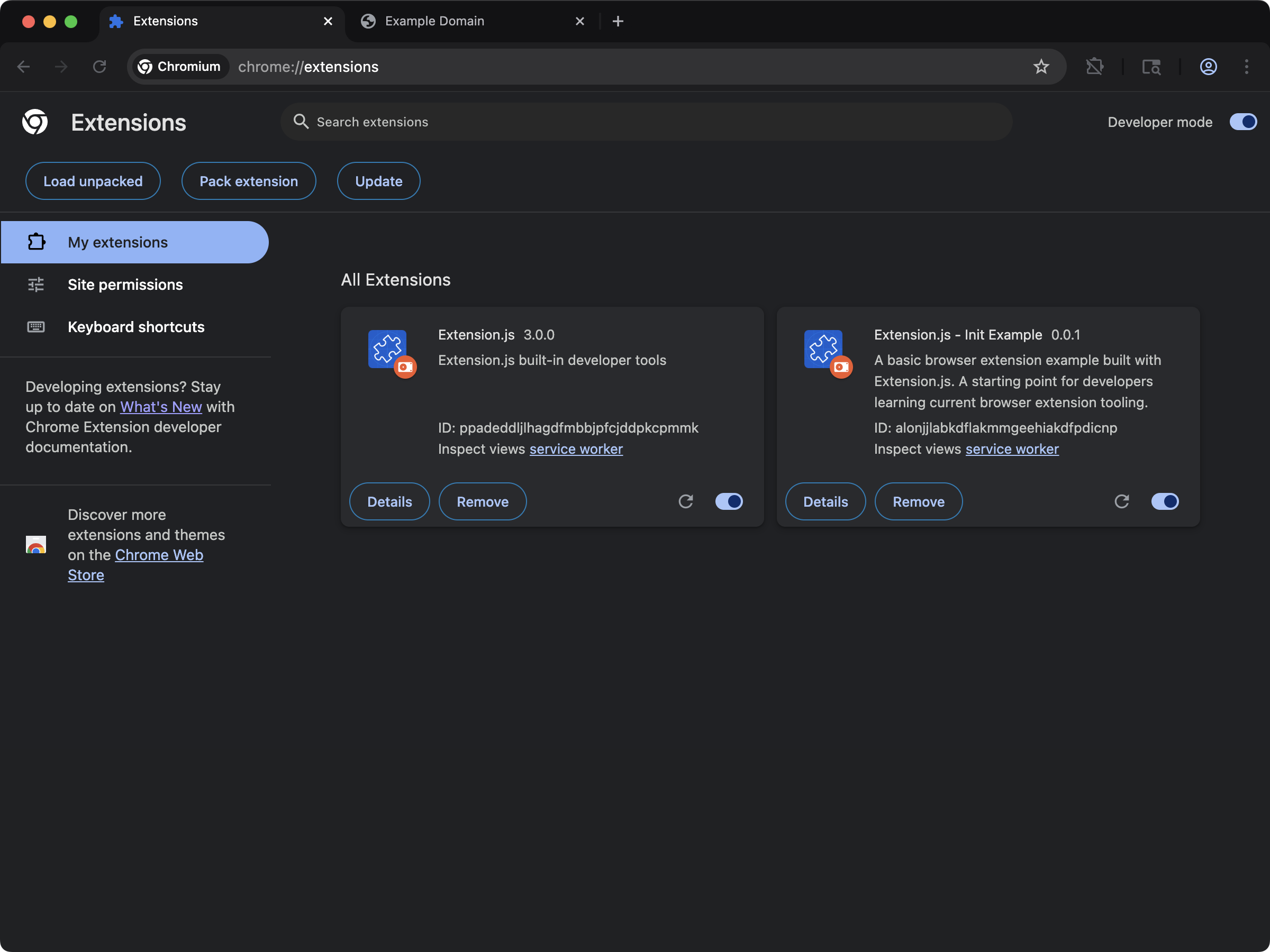 ```bash npm theme={null}
npx extension@latest create my-extension --template=init
```
```bash pnpm theme={null}
pnpx extension@latest create my-extension --template=init
```
```bash yarn 2+ theme={null}
yarn dlx extension@latest create my-extension --template=init
```
```bash bun theme={null}
bunx extension@latest create my-extension --template=init
```
```bash deno theme={null}
deno run -A npm:extension@latest create my-extension --template=init
```
Repository: [extension-js/examples/init](https://github.com/extension-js/examples/tree/main/examples/init)
## Quick tips
* **Use TypeScript:** Add a `tsconfig.json` file to your project root.
* **Use React:** Add `react` and `react-dom` to your `package.json`.
* A `tsconfig.json` configured for React enables TypeScript + React authoring.
* If you need to handle assets not declared in the manifest, learn more about [Special folders](/docs/features/special-folders).
## Best practices
* **Use the `extension` package** to build, run, and bundle your extension from one toolchain.
* **Use `--browser`** to target a specific browser while developing.
* **Use `--polyfill`** when adapting Mozilla-oriented examples for Chromium-based browsers.
* **Prefer full GitHub URLs** for one-shot tries; **clone + local path** when you want a stable folder layout.
## Next steps
* Continue with [create your first extension](/docs/getting-started/create-your-first-extension).
* Browse starter [templates](/docs/getting-started/templates) for your preferred stack.
* Review [dev command options](/docs/commands/dev) to target specific browsers and binaries.
This documentation is built and hosted on [Mintlify](https://mintlify.com), a developer documentation platform.
```bash npm theme={null}
npx extension@latest create my-extension --template=init
```
```bash pnpm theme={null}
pnpx extension@latest create my-extension --template=init
```
```bash yarn 2+ theme={null}
yarn dlx extension@latest create my-extension --template=init
```
```bash bun theme={null}
bunx extension@latest create my-extension --template=init
```
```bash deno theme={null}
deno run -A npm:extension@latest create my-extension --template=init
```
Repository: [extension-js/examples/init](https://github.com/extension-js/examples/tree/main/examples/init)
## Quick tips
* **Use TypeScript:** Add a `tsconfig.json` file to your project root.
* **Use React:** Add `react` and `react-dom` to your `package.json`.
* A `tsconfig.json` configured for React enables TypeScript + React authoring.
* If you need to handle assets not declared in the manifest, learn more about [Special folders](/docs/features/special-folders).
## Best practices
* **Use the `extension` package** to build, run, and bundle your extension from one toolchain.
* **Use `--browser`** to target a specific browser while developing.
* **Use `--polyfill`** when adapting Mozilla-oriented examples for Chromium-based browsers.
* **Prefer full GitHub URLs** for one-shot tries; **clone + local path** when you want a stable folder layout.
## Next steps
* Continue with [create your first extension](/docs/getting-started/create-your-first-extension).
* Browse starter [templates](/docs/getting-started/templates) for your preferred stack.
* Review [dev command options](/docs/commands/dev) to target specific browsers and binaries.
This documentation is built and hosted on [Mintlify](https://mintlify.com), a developer documentation platform.